In today’s digital landscape, static interfaces simply don’t cut it anymore. Users expect dynamic, engaging experiences that respond intelligently to their actions. This is where UI animation tools become game-changers transforming basic interfaces into captivating digital experiences that keep users engaged and drive conversions.
At Web Guider Agency, your trusted web design and development agency, we’ve spent over 5 years helping creative entrepreneurs, coaches, and businesses create websites that don’t just look beautiful they perform. Through countless projects, we’ve tested virtually every animation tool on the market, learning which ones deliver real results and which fall short.
The truth is, choosing the right design animation tool can mean the difference between a project that flows smoothly and one that becomes a frustrating bottleneck. Whether you’re creating subtle micro-interactions that guide users through your interface or building complex animated prototypes that bring your vision to life, having the right tools in your arsenal is essential.
In this comprehensive guide, we’ll explore the best interface motion design tools available in 2025, breaking down their strengths, weaknesses, and ideal use cases. You’ll discover which tools professional designers rely on, how to choose the perfect solution for your specific needs, and proven strategies for implementing animations that enhance rather than distract. Let’s dive into the world of motion design and find the perfect tools to bring your creative vision to life.
Why UI Animation Tools Matter for Modern Design
Before exploring specific tools, let’s understand why UI animation tools have become indispensable for contemporary design work:
Enhancing User Experience Through Motion
Animation isn’t just decoration it’s functional communication. When users click a button and see it respond with a subtle animation, they receive immediate feedback confirming their action registered. Research from Nielsen Norman Group demonstrates that well-implemented animations reduce perceived wait times by up to 30% and significantly increase user satisfaction scores.
Creating Intuitive Navigation Patterns
Design animation helps users understand spatial relationships within your interface. When a menu slides out from the side, users immediately grasp where it was “hiding.” When content fades smoothly between pages, users maintain context and understanding of where they are in your application structure.
Building Brand Personality
Your animation style becomes part of your brand identity. Playful, bouncy animations communicate approachability and fun. Smooth, sophisticated transitions convey professionalism and polish. At our creative web agency, we help clients develop animation strategies that reinforce their unique brand personality.
Improving Conversion Rates
Strategic animation directly impacts business metrics. Animated call-to-action buttons can increase click-through rates by 15-20%. Loading animations reduce abandonment rates during data processing. Progress indicators during multi-step forms increase completion rates significantly.
Meeting User Expectations
Modern users have been conditioned by apps like Instagram, Spotify, and Airbnb to expect fluid, animated interfaces. Static designs now feel outdated and can negatively impact brand perception. Quality animations signal that your product is modern, professional, and worth users’ time.
Understanding Different Types of UI Animation Tools
UI animation tools fall into several distinct categories, each serving specific purposes in the design workflow:
Prototyping-Focused Tools
These tools prioritize testing user flows and interactions over production-ready output. They excel at creating clickable prototypes that stakeholders can experience before development begins. Examples include tools that emphasize multi-screen flows and gesture-based interactions.
Best For: User testing, client presentations, validating design concepts Typical Output: Interactive prototypes, demonstration videos Skill Level: Beginner to intermediate
Motion Graphics Software
Professional motion graphics applications provide maximum creative control for complex animations. These industry-standard tools can create everything from subtle micro-interactions to elaborate animated sequences.
Best For: Complex animations, marketing content, high-fidelity mockups Typical Output: Video files, JSON animations, sprite sheets Skill Level: Intermediate to advanced
Code-Based Animation Platforms
These tools bridge design and development, allowing designers to create animations that export as production-ready code. They often require some programming knowledge but offer unmatched flexibility.
Best For: Web animations, app development, interactive experiences Typical Output: React components, HTML/CSS/JavaScript, native code Skill Level: Intermediate to advanced
Lightweight Animation Creators
Simplified tools focus on creating specific animation types quickly without overwhelming complexity. They’re perfect for designers who need results fast without mastering complex software.
Best For: Quick iterations, simple animations, beginner-friendly projects Typical Output: GIFs, MP4s, Lottie files Skill Level: Beginner to intermediate
Understanding these categories helps you select tools aligned with your project requirements and skill level. Many professional designers including our team at Web Guider maintain expertise across multiple categories to handle diverse project needs.
Top UI Animation Tools for Professional Designers
Let’s explore the leading interface motion design tools that consistently deliver exceptional results:
1. Figma – The Collaborative Design Powerhouse
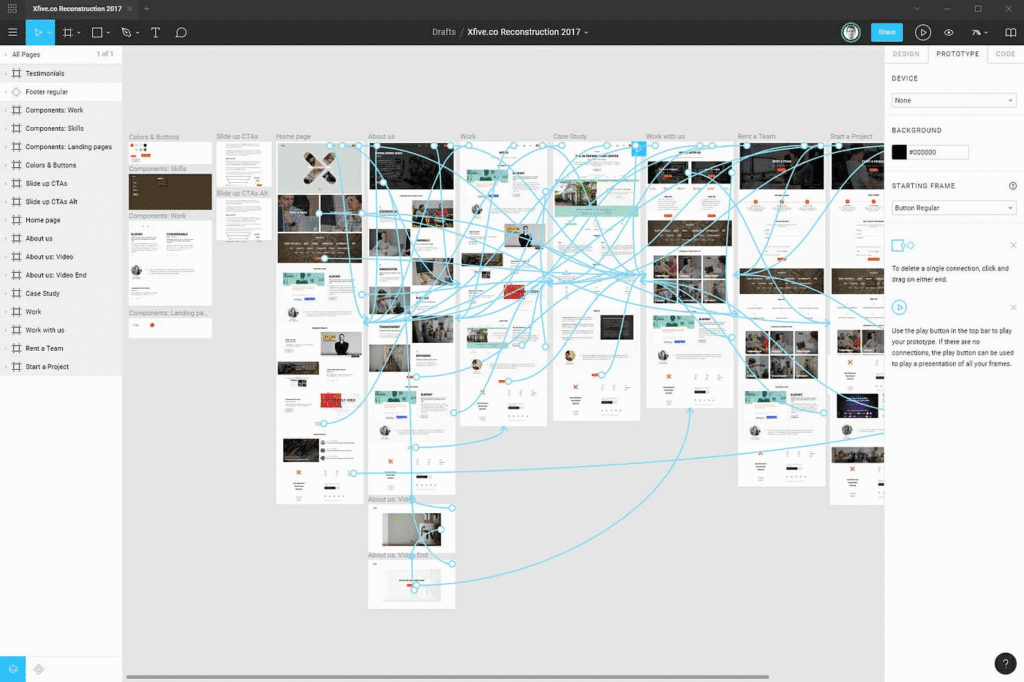
Figma has revolutionized design collaboration, and its animation capabilities have grown impressively. While not originally conceived as an animation tool, Figma’s Smart Animate feature and interactive components make it surprisingly powerful for design animation.
Key Capabilities:
- Smart Animate automatically creates smooth transitions between frames
- Interactive components enable complex state-based animations
- Real-time multiplayer allows teams to prototype together
- Extensive plugin ecosystem adds specialized animation features
- Device preview shows animations on actual phones and tablets
Strengths:
- Already part of most designers’ workflows
- Browser-based requires no installation
- Excellent for documenting animation specifications
- Collaborative features streamline team feedback
- Free tier provides robust functionality
Limitations:
- Animation capabilities less advanced than specialized tools
- Complex multi-step animations become cumbersome
- No timeline-based animation controls
- Limited easing curve customization
Best For: Design teams needing integrated prototyping, quick interaction mockups, maintaining design-to-development handoff
Pricing: Free for individuals; Professional plans from $12/editor/month
At our professional website design studio, Figma serves as our primary tool for creating interactive prototypes that clients can click through during the design approval process.
2. Rive – Interactive Animation Evolved
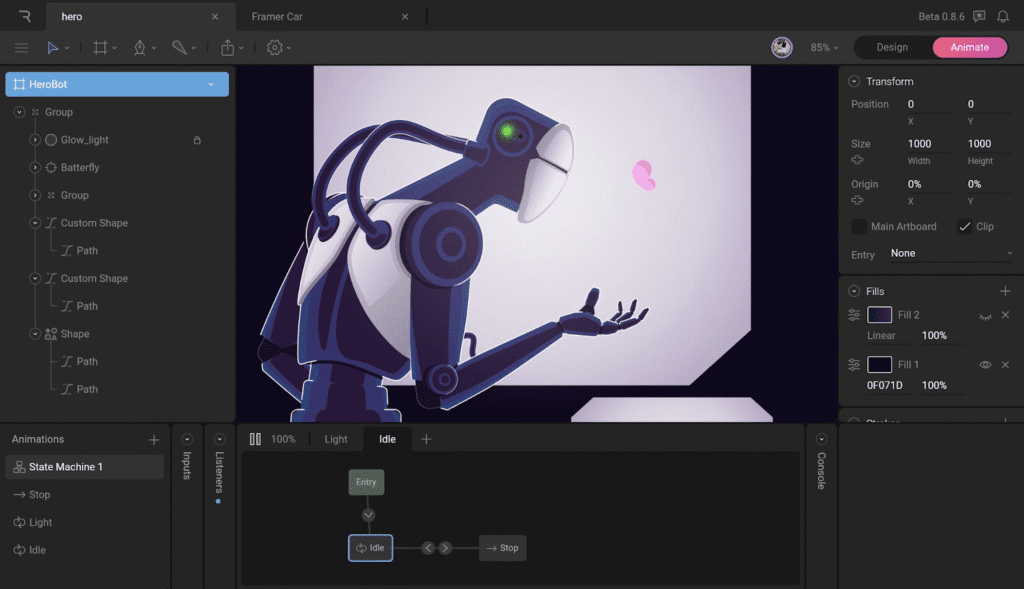
Rive represents the next generation of UI animation tools, designed specifically for creating runtime-interactive animations that respond to user input, game state, or any external data source.
Key Capabilities:
- State machines control complex animation logic
- Real-time interactivity responds to user actions
- Runtimes available for web, iOS, Android, Flutter, Unity
- Vector-based graphics ensure perfect scaling
- Inverse kinematics enable character animation
Strengths:
- Creates genuinely interactive animations, not just playback
- Small file sizes perfect for web performance
- Works across all major platforms
- Both designer-friendly and developer-friendly
- Active community and regular updates
Limitations:
- Steeper learning curve than simpler tools
- Requires understanding state machine concepts
- Less suited for linear, narrative animations
- Documentation still growing
Best For: Interactive illustrations, animated icons, game UI, responsive mascots, complex user interactions
Pricing: Free community plan; Professional plans from $15/month
Rive excels when animations need to respond dynamically to user actions or application state something static animation tools simply cannot achieve.
3. Adobe After Effects – The Industry Standard
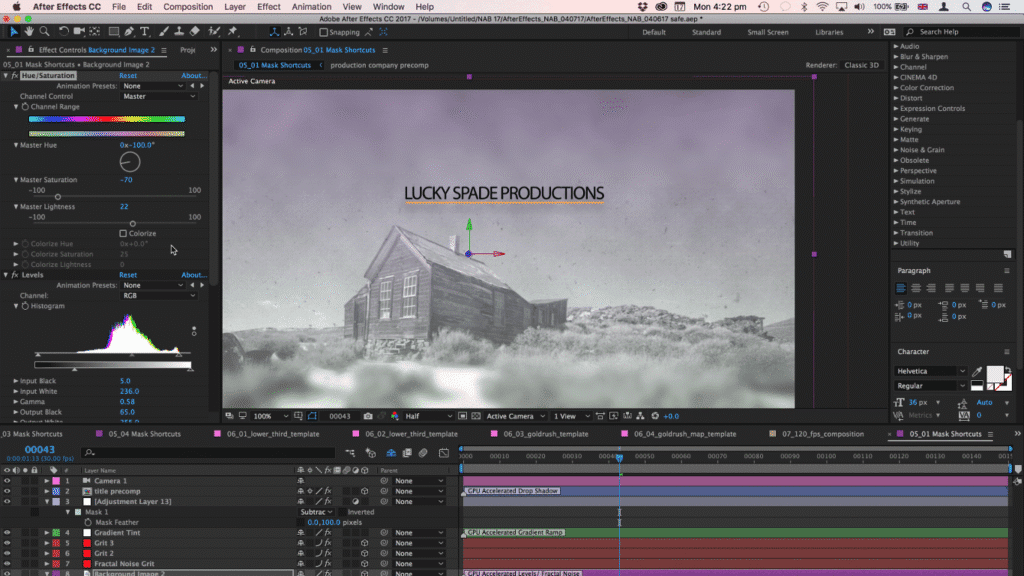
After Effects remains the gold standard for professional motion graphics and interface motion design. Its comprehensive toolset enables everything from subtle micro-interactions to elaborate animated sequences.
Key Capabilities:
- Timeline-based animation with precise keyframe control
- Extensive effects library for visual polish
- Expression language enables complex procedural animation
- Bodymovin plugin exports to Lottie format
- Integration with entire Adobe Creative Suite
Strengths:
- Unmatched creative possibilities
- Industry-standard workflow
- Massive community and learning resources
- Professional-grade output quality
- Powerful plugin ecosystem
Limitations:
- Significant learning curve
- Resource-intensive requiring powerful hardware
- Subscription-based pricing model
- Not designed specifically for UI work
- Requires plugin for production-ready output
Best For: Marketing animations, complex motion graphics, high-fidelity mockups, custom loading animations
Pricing: $22.99/month (individual app) or $54.99/month (Creative Cloud)
For projects requiring cinematic quality or complex visual effects, After Effects remains irreplaceable. Our team at Web Guider Agency turns to After Effects when clients need premium animated content that showcases their brand with maximum impact.
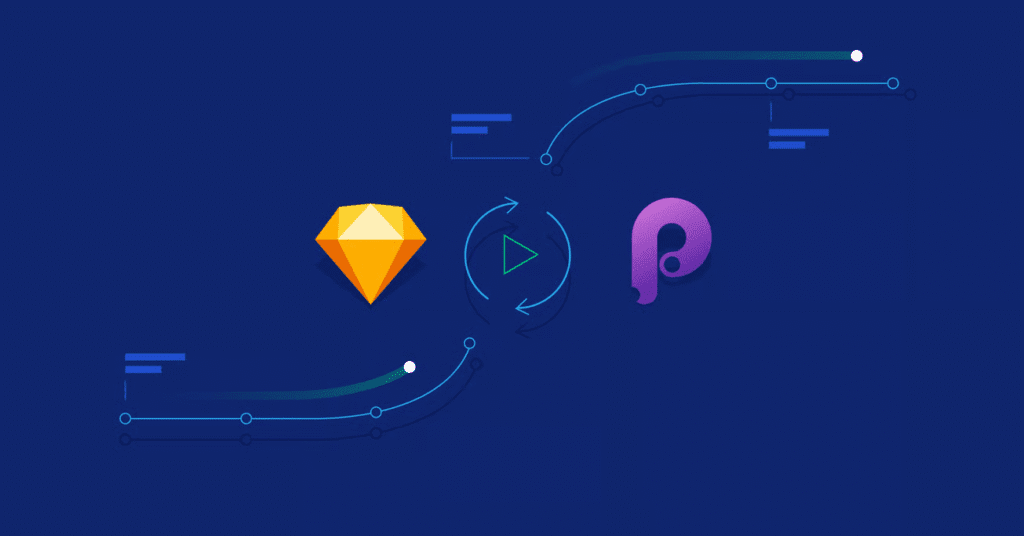
4. Principle – Mac-Optimized Prototyping
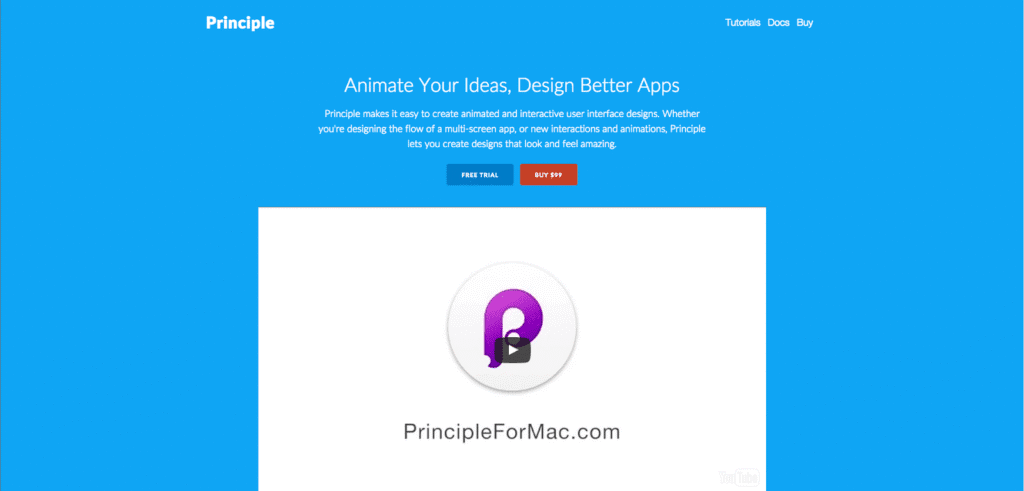
Principle offers an intuitive, timeline-based approach to creating animated prototypes specifically for Mac users. Its familiar interface makes it accessible for designers transitioning from static design tools.
Key Capabilities:
- Artboard-based workflow similar to Sketch
- Timeline animation with visual easing curves
- Import designs from Sketch or Figma
- Mirror preview on iOS devices
- Video and GIF export options
Strengths:
- Intuitive interface for designers
- Fast performance and rendering
- Great for multi-screen app flows
- Affordable one-time purchase
- Excellent for client presentations
Limitations:
- Mac-only availability
- Limited code export functionality
- Smaller community than cross-platform tools
- Less powerful than specialized animation software
- Not ideal for web-based projects
Best For: App prototyping, screen transition design, iOS app mockups, design presentations
Pricing: $129 one-time purchase
Principle’s strength lies in its simplicity designers can create impressive animated prototypes without mastering complex software, making it popular for our UX design experts during rapid prototyping phases.
5. ProtoPie – Advanced Interaction Design
ProtoPie stands out for its ability to create highly sophisticated interactions without writing code. It excels at multi-device prototyping and sensor-based interactions that feel incredibly realistic.

Key Capabilities:
- Formula-based interactions without coding
- Sensor support (tilt, sound, proximity, 3D Touch)
- Multi-device prototyping across phones, tablets, watches
- Voice and keyboard input integration
- Cloud sharing for remote testing
Strengths:
- Extremely advanced interactions possible
- No coding knowledge required
- Excellent device preview capabilities
- Great for IoT and connected device prototypes
- Strong testing and feedback features
Limitations:
- Subscription pricing model
- Steeper learning curve for complex features
- Limited design capabilities (imports from other tools)
- Can be overkill for simple prototypes
- Windows and Mac only (no web version)
Best For: Complex gesture-based interfaces, smartwatch apps, connected device experiences, advanced usability testing
Pricing: Free tier available; Pro plans from $25/month
When clients need to test sophisticated interaction patterns before development, ProtoPie provides the realism necessary for confident decision-making.
6. Lottie and LottieFiles – Lightweight Animation Delivery
While not a creation tool itself, the Lottie ecosystem deserves mention for revolutionizing how design animation gets implemented on websites and in apps. Lottie files are JSON-based animations that are incredibly lightweight and scalable.

Key Capabilities:
- Browse extensive library of free animations
- Simple editor for tweaking existing animations
- Export from After Effects via Bodymovin plugin
- Implementations available for all major platforms
- Perfect scalability at any size
Strengths:
- Extremely small file sizes
- Perfect for web performance optimization
- Huge library of ready-made animations
- Easy implementation for developers
- Free community animations available
Limitations:
- Limited creation capabilities
- Best suited for simpler animations
- Some After Effects features not supported
- Requires source animation from another tool
Best For: Web animations, app loading indicators, icon animations, illustration sequences
Pricing: Free tier available; Pro plans from $9/month
As an SEO optimization agency, we love Lottie because animations stay lightweight, ensuring fast page loads that Google rewards in search rankings.
7. Jitter – Browser-Based Motion Design
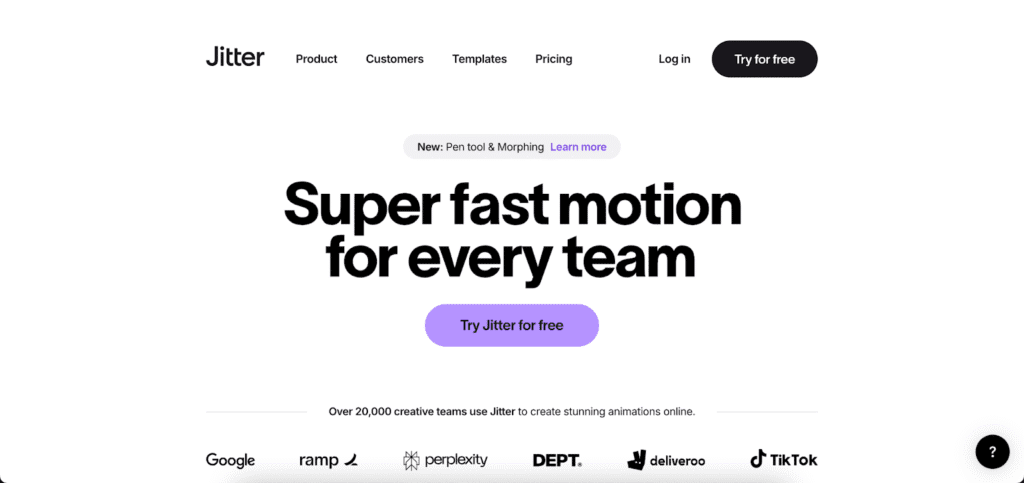
Jitter brings motion design capabilities directly into your browser, making UI animation tools accessible without software installation. It’s particularly valuable for designers new to motion graphics.
Key Capabilities:
- Browser-based, no installation required
- Import designs directly from Figma
- Timeline-based animation interface
- Export to multiple formats (GIF, MP4, Lottie)
- Collaborative animation creation
Strengths:
- Extremely accessible for beginners
- Figma integration streamlines workflow
- No software purchase required
- Fast rendering and preview
- Growing template library
Limitations:
- Less powerful than desktop applications
- Internet connection required
- Limited compared to After Effects
- Smaller community and resources
- Newer tool with evolving feature set
Best For: Quick animations, social media content, simple UI animations, designers new to motion
Pricing: Free tier available; Pro plans from $12/month
Jitter’s accessibility makes it perfect for designers dipping their toes into interface motion design without committing to complex software learning curves.
Choosing the Right UI Animation Tool for Your Needs
With so many excellent UI animation tools available, how do you choose? Consider these key factors:
Project Requirements Assessment
For Simple Prototypes: Figma’s built-in prototyping often suffices. Smart Animate handles basic transitions, and interactive components manage state changes effectively.
For Complex Interactions: ProtoPie or Principle provide the control needed for sophisticated gesture-based experiences and multi-screen flows.
For Production Animations: After Effects combined with Lottie export, or Rive for interactive needs, ensures professional-quality implementation.
For Quick Turnaround: Jitter or LottieFiles’ template library gets results fast when timelines are tight.
Skill Level Consideration
Beginners: Start with Figma (you’re probably already using it) or Jitter for approachable interfaces that don’t overwhelm.
Intermediate: Principle offers power without complexity, while ProtoPie opens doors to advanced interactions.
Advanced: After Effects provides maximum creative control, and Rive offers cutting-edge interactive capabilities.
Team Collaboration Needs
If you’re working with a team as we do at our website development company cloud-based collaboration becomes crucial. Figma and Jitter shine here, allowing real-time teamwork and easy sharing.
Platform and Implementation
Web Projects: Lottie animations, Rive interactions, or CSS-based Figma exports work beautifully.
Mobile Apps: Native tool support matters. Consider whether your tool exports to iOS/Android formats.
Cross-Platform: Rive’s universal runtimes ensure consistent animation across all platforms.
Budget Constraints
Free/Low-Cost: Figma (free tier), LottieFiles, Jitter (free tier) provide substantial capabilities without financial investment.
Mid-Range: Principle (one-time purchase), ProtoPie, Jitter Pro offer professional features at reasonable prices.
Premium: Adobe Creative Cloud subscription provides industry-standard tools but requires ongoing investment.
Performance Requirements
For our web design services that prioritize speed and SEO, we always consider file size and performance impact. Lottie and Rive animations stay lightweight, while video-based solutions can significantly impact page load times.
Best Practices for Creating Effective UI Animations
Having the right design animation tools is only half the equation. Here’s how to use them effectively:
Follow the 12 Principles of Animation
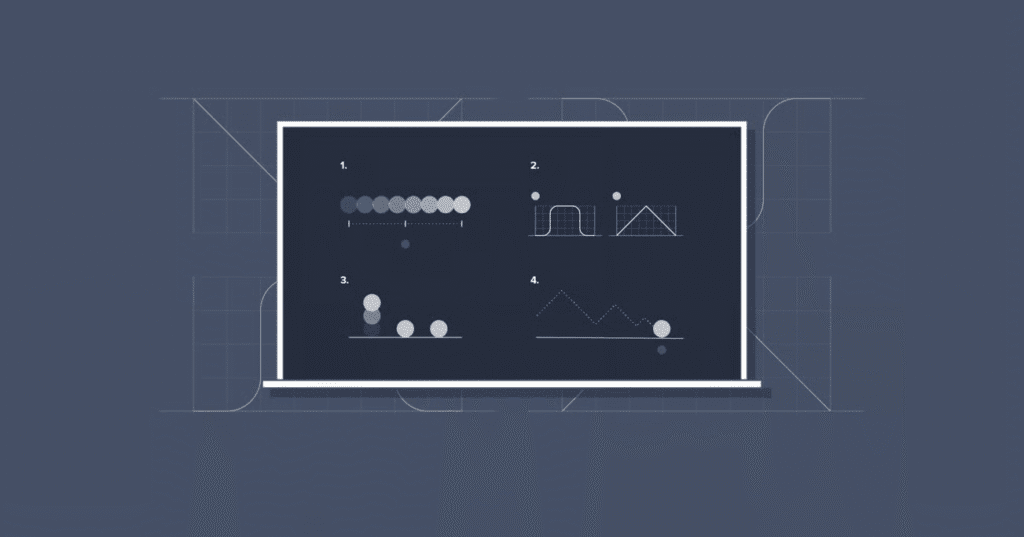
Originally developed by Disney animators, these principles apply perfectly to UI work:
Timing: Animation duration should match user expectations. Quick feedback (100-200ms) for micro-interactions, longer transitions (300-500ms) for screen changes.
Easing: Never use linear motion. Real-world objects accelerate and decelerate. Ease-in-out creates natural feeling movement.
Anticipation: Subtle wind-up before main action helps users predict what’s happening.
Follow-Through: Elements shouldn’t stop abruptly. Add subtle bounce or overshoot for natural movement.
Staging: Direct attention to what matters. Use motion to guide user focus.
Design for Purpose, Not Decoration
Every animation should serve a clear purpose:
Feedback: Confirm user actions registered (button press, form submission)
Guidance: Direct attention to important information or next steps
Relationships: Show how elements connect (expanding menus, sliding panels)
Context: Maintain spatial awareness during transitions
Status: Communicate system state (loading, processing, errors)
Avoid animations that don’t serve these purposes they become distracting decoration that hurts user experience.
Optimize for Performance
Beautiful animations mean nothing if they cause janky scrolling or slow load times:
Use CSS Transforms: Animate transform and opacity properties for smooth 60fps performance
Avoid Layout Thrashing: Animating width, height, or position causes expensive reflows
Lazy Load Animations: Load animation assets only when needed
Test on Real Devices: Your powerful Mac isn’t representative of user devices
Provide Reduced Motion: Respect prefers-reduced-motion media query for accessibility
Our custom conversion approach always balances visual appeal with technical performance to ensure animations enhance rather than hinder the user experience.
Maintain Consistency
Create animation guidelines just like you would for colors and typography:
Standard Durations: Define timing scales (fast: 200ms, medium: 400ms, slow: 600ms)
Easing Curves: Select 2-3 standard easing functions for your project
Animation Styles: Choose whether your brand is playful-bouncy or sophisticated-smooth
Usage Rules: Document when to use each animation type
Consistency creates a cohesive experience that feels polished and professional rather than haphazard.
Test with Real Users
Your design team’s opinion isn’t enough. Conduct usability testing to verify animations actually improve the experience:
- Do animations help users understand what’s happening?
- Do they guide attention effectively?
- Are they distracting or annoying with repeated use?
- Do they work across devices and connection speeds?
User feedback often reveals animations that seemed clever in design sessions actually confuse or frustrate real users.
Common Mistakes When Using UI Animation Tools
Even with powerful interface motion design tools, designers frequently make these errors:

Animation Overload
The “dessert menu problem” wanting to use every cool feature your animation tool offers. More animation doesn’t equal better experience. Each animation should earn its place by serving a clear purpose.
Solution: Start minimal. Add animations only where they solve specific UX problems.
Inconsistent Timing
Using random durations creates jarring, unprofessional feel. A button animating at 150ms here and 600ms there feels sloppy.
Solution: Establish timing system and stick to it religiously across all animations.
Ignoring Mobile Performance
Animations that run smoothly on your powerful desktop often stutter on mobile devices, especially older or budget phones that represent significant user base.
Solution: Always test on real devices, especially mid-range Android phones which typically have the weakest performance.
Forgetting Accessibility
Some users experience motion sickness or vestibular disorders triggered by animations. Others find them distracting or disorienting.
Solution: Implement prefers-reduced-motion media query and provide animation controls in settings.
No Fallback Plans
Animations fail. Network issues prevent loading. Older browsers don’t support modern features. Your design needs to work without animations.
Solution: Progressive enhancement ensure core functionality works without animations, then layer them as enhancement.
Copying Trends Blindly
Just because everyone’s using elastic bounce animations doesn’t mean they fit your brand. Trends change; your animations should reflect your unique identity.
Solution: Choose animation styles strategically based on brand personality, not temporary trends.
Real-World Examples of Effective UI Animation
Let’s examine how successful products use design animation effectively:
Stripe – Subtle Sophistication
Stripe’s payment forms feature incredibly subtle animations that reduce user anxiety during financial transactions. As users type credit card numbers, the card illustration animates smoothly, providing reassuring feedback. The animations are so subtle many users don’t consciously notice them they just feel the experience is smoother.
Lesson: Effective animation often works subconsciously, creating feeling without being obvious.
Duolingo – Playful Engagement
Duolingo’s animations reinforce its friendly, encouraging brand personality. Success celebrations with confetti and bouncing mascots make learning feel like play. Even error states use gentle animations that encourage trying again.
Lesson: Animation style should reinforce brand personality and emotional positioning.
Apple – Precision and Polish
Apple’s operating systems showcase how refined animations create premium feel. Every transition feels carefully choreographed. Physics-based animations create natural momentum. Nothing feels rushed or arbitrary.
Lesson: Animation quality directly influences perceived product quality and brand premium positioning.
Airbnb – Spatial Understanding
Airbnb’s map interactions use animation to maintain spatial context. As you browse listings and transition to the map view, smooth animations show the connection between list and location, preventing disorientation.
Lesson: Strategic animation maintains user context during navigation, reducing cognitive load.
These examples demonstrate principles we implement in our web design and development projects animations that feel intentional, purposeful, and aligned with brand strategy.
Integrating Animation Tools into Your Design Workflow
Successfully incorporating UI animation tools requires workflow integration, not just tool knowledge:
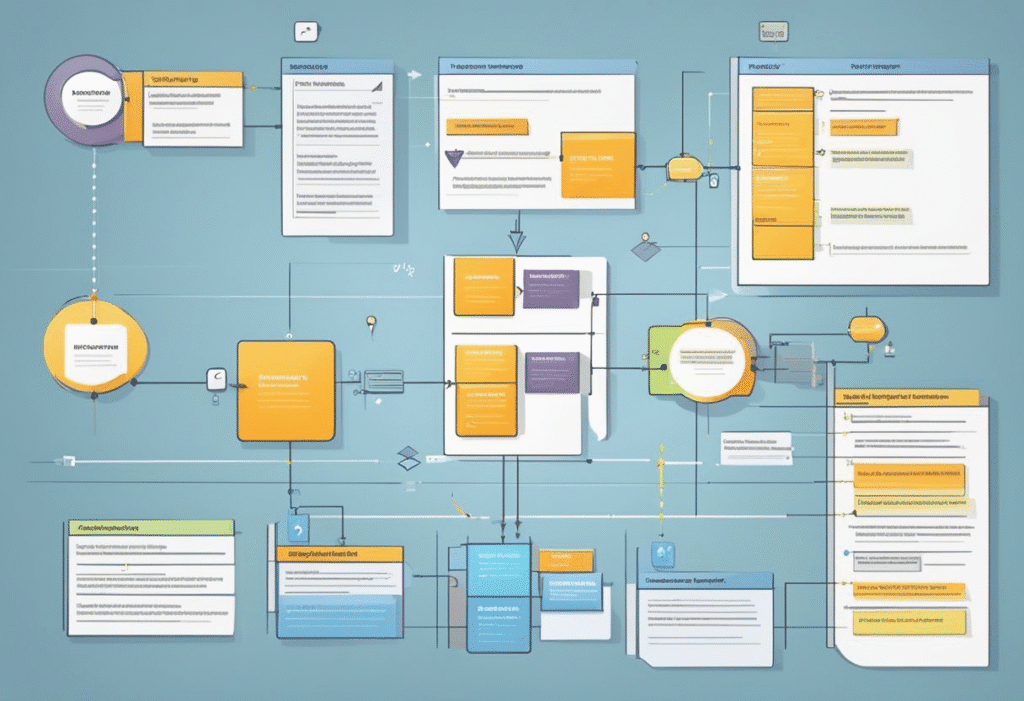
Discovery and Planning Phase
During initial project stages, document animation opportunities:
- Identify key user actions requiring feedback
- Map screen transitions and navigation flows
- Define micro-interactions for enhanced usability
- Establish animation personality aligned with brand
Design Phase
Create static designs first, then layer in animation thinking:
- Design with animation in mind (consider before/after states)
- Create animation style guide alongside visual guidelines
- Sketch animation concepts with simple storyboards
- Get stakeholder buy-in on animation approach
Prototyping Phase
Build interactive prototypes using appropriate design animation tools:
- Start simple, add complexity gradually
- Create multiple animation variations for testing
- Test with representative users, not just team
- Document animation specifications for development
This is where our professional website design process really shines we create prototypes clients can click through and experience before any code is written.
Development Phase
Bridge design and development smoothly:
- Provide clear animation specifications (duration, easing, triggers)
- Use tools with developer-friendly export options
- Maintain close designer-developer communication
- Review implemented animations in staging environment
Testing and Refinement
Validate animations in real-world conditions:
- Test across devices and browsers
- Monitor performance metrics (frame rate, load impact)
- Gather user feedback on animation effectiveness
- Iterate based on data and observations
Documentation and Maintenance
Ensure consistency as projects evolve:
- Document animation library and guidelines
- Create reusable components where possible
- Update documentation as animations evolve
- Include animations in design system
Our theme customization services always include animation documentation to ensure consistency as websites grow and evolve over time.
The Future of UI Animation Tools
The interface motion design landscape continues evolving rapidly. Here’s what’s emerging:
AI-Assisted Animation
Machine learning tools are beginning to suggest animations, auto-generate transitions, and even create motion from static designs based on learned patterns from thousands of examples.
Impact: Lower barrier to entry for animation beginners, but human creativity still essential for strategic implementation.
Improved Design-to-Code Translation
The gap between design tools and production code narrows further. Expect more tools generating clean, production-ready code directly from visual animation creation.
Impact: Faster implementation, fewer miscommunications between designers and developers.
Real-Time Collaboration Evolution
Following Figma’s success, more animation tools will prioritize multiplayer experiences where entire teams work simultaneously.
Impact: Faster iteration, better team alignment, reduced back-and-forth communication overhead.
3D and Spatial Computing
As WebGL, WebGPU, and spatial computing platforms (VisionOS) mature, animation tools will increasingly support 3D motion design.
Impact: Richer, more immersive experiences becoming standard rather than special cases.
Performance-First Tooling
With Core Web Vitals becoming crucial for SEO, future tools will emphasize performance metrics from creation stage, not just final optimization.
Impact: Better performing animations by default, aligning perfectly with our SEO optimization agency approach.
FAQs About UI Animation Tools
What are the best free UI animation tools for beginners?
The best free UI animation tools for beginners are Figma and Jitter. Figma’s Smart Animate feature integrates animation into a tool most designers already use, with no learning curve for basic prototyping. Its free tier includes all core animation features. Jitter offers a browser-based motion design platform specifically designed for designers new to animation, with intuitive timeline controls and Figma integration.
Both tools provide substantial capabilities without financial investment, making them perfect starting points. As designers advance, they can explore more specialized tools while maintaining these foundations. At our creative web Design agency, we often start beginners with Figma’s prototyping before introducing more complex tools.
Do I need coding skills to use UI animation tools?
Most modern design animation tools don’t require coding skills for basic to intermediate use. Visual tools like Figma, Principle, ProtoPie, and Jitter use graphical interfaces where you manipulate timelines, set triggers, and define responses without writing code. However, coding knowledge becomes valuable for advanced scenarios: implementing custom animations in production websites, creating complex interactive logic, or optimizing performance.
Tools like Rive offer both code-free and code-friendly approaches. If you’re creating animations for actual implementation rather than just prototypes, basic HTML/CSS/JavaScript understanding helps you design animations developers can actually build. Our UX design experts recommend learning animation principles first, then adding coding skills as your career progresses.
How do UI animations impact website performance and SEO?
Interface motion design significantly impacts both performance and SEO, positively or negatively depending on implementation. Lightweight animations using CSS transforms or Lottie/Rive files typically have minimal performance impact and can actually improve SEO by increasing engagement metrics (time on site, bounce rate) that Google considers.
However, heavy implementations excessive JavaScript, large video files, or poorly optimized animations slow page loads, hurt Core Web Vitals scores, and damage search rankings. The key is strategic implementation: use performance-friendly animation formats, lazy-load animations below the fold, optimize file sizes, and always test on real devices. Our web design services balance visual appeal with technical performance, ensuring animations enhance rather than hinder both user experience and search visibility.
Which UI animation tool do professional designers use most?
Professional designers don’t rely on a single UI animation tool they maintain expertise across multiple tools for different scenarios. However, the most universally used is Adobe After Effects for high-fidelity animations and motion graphics, combined with Figma for prototyping and design-to-development handoff.
After Effects dominates because it offers maximum creative control and industry-standard workflows, while Figma’s adoption has exploded for its collaboration features and integrated design-to-prototype workflow. Rive is rapidly gaining traction for interactive web and app animations.
Most professional designers specialize in 2-3 tools based on their focus: motion design specialists prioritize After Effects, UX designers emphasize Figma and ProtoPie, and web-focused designers often combine multiple tools. At our website development company, our team uses different tools strategically depending on project requirements rather than forcing one tool for all scenarios.
Can I use UI animation tools for mobile app design?
Yes, most modern design animation tools support mobile app design, though capabilities vary. ProtoPie excels for mobile with gesture support, sensor integration (tilt, proximity, vibration), and device preview features. Principle focuses specifically on mobile app prototyping with iOS device mirroring. Figma works excellently for mobile prototyping with responsive design features and mobile app preview.
After Effects creates high-quality animations exportable to Lottie format, which works perfectly in iOS and Android apps. Rive provides runtimes for iOS, Android, and Flutter with the same animation file. The key consideration is whether you need simple prototypes (Figma works great) or production-ready animations (Lottie or Rive). For mobile-specific features like 3D Touch, haptic feedback, or complex gestures, specialized tools like ProtoPie provide capabilities general-purpose tools lack.
Conclusion: Choosing Your Animation Toolkit for Success
Mastering UI animation tools transforms you from someone who creates static designs into a strategic motion designer who uses animation to guide users, communicate feedback, and create memorable experiences that drive business results. The right tools don’t just make your work look better they make it perform better.
The best approach isn’t finding the single “perfect” tool it’s building a toolkit that covers your needs across different scenarios. Start with accessible tools like Figma for basic prototyping, then expand into specialized tools as your skills and project complexity grow. Whether you choose After Effects for cinematic quality, Rive for cutting-edge interactivity, or ProtoPie for sophisticated prototyping, ensure your choice aligns with your project requirements, team capabilities, and implementation needs.
Remember, tools are just enablers what matters is how strategically you use them. The most impressive animations aren’t necessarily the most complex; they’re the ones that solve real user experience problems while feeling effortless and natural. Focus on purposeful animation that enhances usability, communicates status clearly, and reinforces your brand personality.
At Web Guider Agency, we combine mastery of leading interface motion design tools with strategic thinking about when, where, and how to implement animations for maximum impact. Our approach ensures every animation serves your business objectives while creating experiences users genuinely enjoy.
Ready to Bring Your Designs to Life with Professional Animation?
Don’t let outdated, static interfaces hold your business back. Strategic animation can dramatically improve user engagement, brand perception, and conversion rates.
Book a Free Consultation with our UX design experts to discuss how professional animation can elevate your digital presence and drive measurable business results.
Explore our portfolio of projects to see animation in action across diverse industries, or check out our comprehensive web design services to learn how we integrate animation strategically into every project stage.
Start Your Project Today
Your users expect dynamic, engaging experiences. Let’s create something extraordinary together that not only looks stunning but performs flawlessly.
Contact Web Guider Agency today and discover how mastering the right UI animation tools can transform your digital product from ordinary to unforgettable.